
aXcelerate is a user-friendly Student Management System (SMS). It ensures QFES meets its obligations as a Registered Training Organisation (RTO).
All QFES paid staff and volunteers will be able to access, deliver, assess and record training using aXcelerate.
NOTE: Do not contact aXcelerate directly for support. If you are unable to resolve your issue with these resources, contact your Regional Training Unit.
If you are new to aXcelerate visit Welcome to aXcelerate.
Change email address
To change the email address used by you aXcelerate account complete this form. This option is only available for volunteers.
Learners
Can’t find your aXcelerate account invitation email?
Please email training.rto@qfes.qld.gov.au with your name, date of birth and your email address. We will email you another invitation to set your your aXcelerate account.
| Learner Guide | Step-by-step instructions for what you need to do in aXcelerate. View the guide online or print for offline use. aXcelerate Learner’s Guide – Get Started – Enrol – Assessments – Track Progress – Mobile App How to Submit a Credit Transfer |
| Creating and accessing your account | – Create your aXcelerate account – Login or reset a forgotten password |
| E-Learning in aXcelerate | Log into aXcelerate to complete the training course.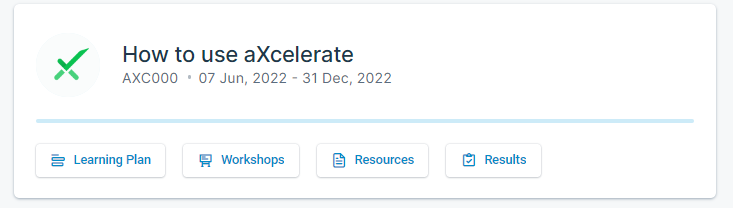 |
| Frequently Asked Questions | Answers to the most asked questions from Learners. – Accessing aXcelerate for the first time |
 aXcelerate Help and Support Centre aXcelerate Help and Support Centre | Help that is built into aXcelerate. This content is not specific to QFES. Look for the question mark icon. |
Trainers
Link to Course List
| Videos | Short screen recordings of key activities: – Viewing course information (in the Trainer App) (1:15 mins) – Assessment marking (in the Trainer App) (2 mins) – Marking questions (0:35 mins) – Marking assessments (3 mins) – Finalise marking (0:35 mins) – Manually submitting an assessment via a Class (0:45 mins) – Manually submitting an assessment via a Contact record (1 min) – Marking Attendance (1 min) Live training session recording (45 mins) Jump to topic: – Marking Attendance – Marking Assessments – Marking Assessments: Theory Assessments – Controlling access to assessments (dates) – Linking Trainer/Assessors to specific assessments – Trainer App for mobile devices – Finding a Course (Trainer App) – Mark an observation checklist (Trainer App) – Mark offline (Trainer App) – Mark an individual student (Trainer App) |
| How To Guides | Step-by-step instructions for completing core activities. – Mark an online assessment Add the Online Assessments widget to the Dashboard Mark an Assessment online Create an additional Assessment attempt Print a blank Assessment Recording printed Assessment results Mark an Observation Assessment in the Trainer App JUST READ THE EXTRACT: Create an additional Assessment attempt – Mark attendance Mark attendance Bulk mark attendance Print an attendance sheet Mark attendance in the Trainer App – How To: Manage Activity Evaluation Surveys Send an Activity Evaluation survey from a Class Send an Activity Evaluation survey reminder View and share results Record paper-based Activity Evaluation Survey results |
| E-Learning in aXcelerate | Log into aXcelerate to complete the training course on the Learners Portal page. Can’t see the course? Email training.rto@qfes.qld.gov.au to be enrolled. |
| aXcelerate assistant | Help that is built into aXcelerate. This content is not specific to QFES.Look for the question mark icon to access the aXcelerate assistant for the screen you are on. |
| aXcelerate Help and Support Centre | Open the Help and Support Centre to browse different support categories. Select Help in the top menu, then Help & Support Centre. |
Reporting Only
| How To Guides | Step-by-step instructions for completing core activities. – Build and run Reports Run a report Adjust report filters Change data displayed on a report Display report results as a chart Export a report to another format Save changes made to a report |
| E-Learning in aXcelerate | Log into aXcelerate to complete the training course.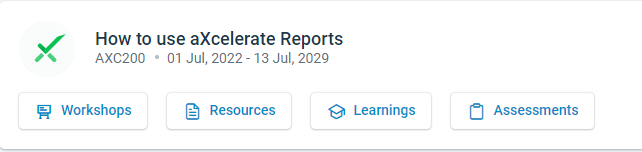 |
| Live training session recording | A 22 minute recording of a live training session on reporting. |